PC Game Optimization Tips for Beginners and Power Users
A smooth PC gaming experience is the sum of hardware, software, and sensible settings. Whether you're troubleshooting stutter, chasing higher FPS, or trying to balance visuals and performance, this guide walks through practical optimizations for Windows PCs and handheld gaming PCs. It covers quick wins, deeper system tweaks, and hardware upgrades that deliver the most noticeable improvements.
---
Start with the basics
These steps resolve many common performance issues.
---
In-game settings that matter most
Resolution and render scale
- Lowering resolution or using upscaling (DLSS, FSR, XeSS) yields the biggest FPS gains with minimal visual loss.
Texture quality
- High textures use VRAM; if you see stutter or texture pop-in, lower texture settings or install on faster storage.
Shadows and post-processing
- Shadows, ambient occlusion, and motion blur are expensive; reduce them first for better performance.
V-Sync and frame pacing
- Use adaptive sync (G-SYNC/FreeSync) where available. Cap FPS to avoid GPU overheating and inconsistent frame times.
Windows-level optimizations
Power plan and CPU scheduling
- Set Windows power plan to High performance or create a custom plan.
- In Windows 11, set the game to High performance in Graphics settings.
Game Mode and GPU scheduling
- Enable Game Mode and Hardware-accelerated GPU scheduling for potential gains.
Disable unnecessary services
- Use Task Manager to disable heavy background processes during gaming sessions.
Storage and memory tips
- Install games on SSD/NVMe for faster load times and reduced streaming stutter.
- Use 16GB+ RAM for modern titles; 32GB helps with heavy multitasking and modded games.
- Keep 15–20% free space on your game drive for consistent SSD performance.
Network and online play
- Use wired Ethernet for stable latency.
- QoS on router can prioritize gaming traffic.
- Close bandwidth-heavy apps (cloud sync, streaming) during competitive play.
Advanced tweaks for enthusiasts
Undervolting and power tuning
- Undervolting the CPU/GPU can reduce thermals and maintain higher sustained clocks. Test stability thoroughly.
Overclocking
- Overclocking yields gains but increases heat and power draw. Use conservative profiles and stress-test.
Frame time analysis
- Use tools like MSI Afterburner + RivaTuner (or CapFrameX/PresentMon) to log frame times and identify spikes.
Driver rollback and testing
- If a new driver causes issues, rollback to a stable version and test.
Hardware upgrades that move the needle
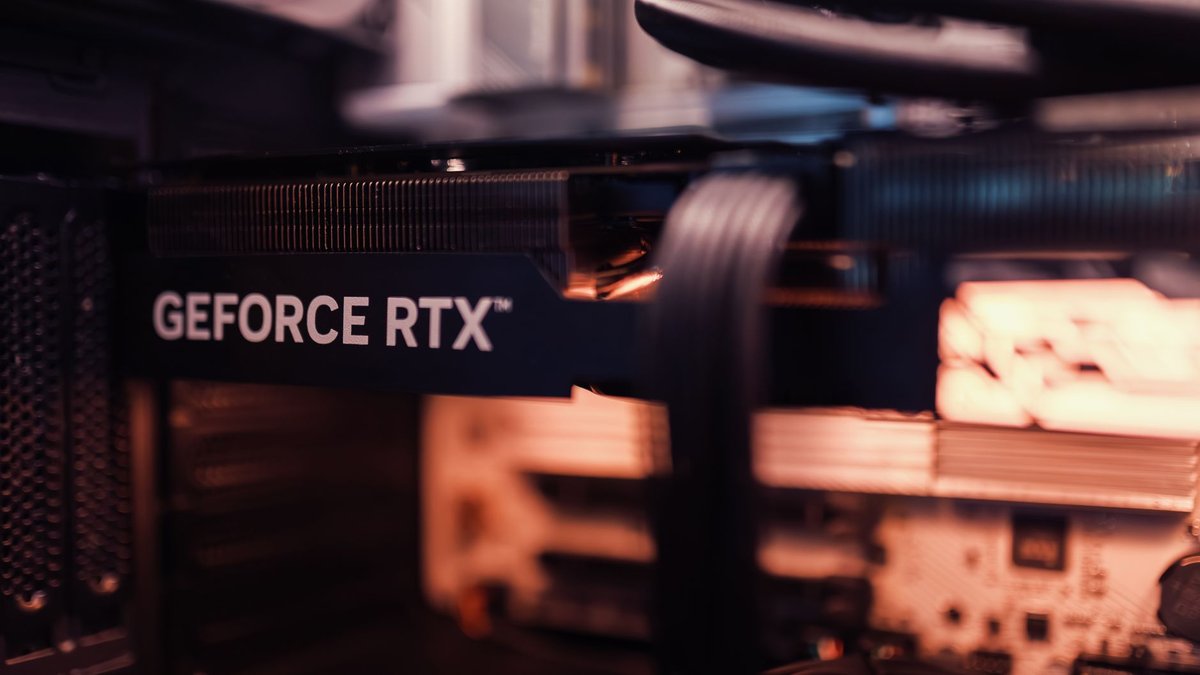
- GPU: Biggest impact on FPS and visual quality.
- SSD/NVMe: Reduces load times and streaming stutter.
- RAM: 16GB minimum; 32GB for heavy multitasking/mods.
- CPU: Important for CPU-bound titles and high-refresh gaming.
Troubleshooting checklist
- Stutter: Check disk I/O, VRAM usage, shader compilation (first-run stutter is normal in many modern titles), and background processes.
- Crashes: Verify files, update drivers, and test with minimal mods.
- Low FPS: Lower resolution/upscaling, check thermal throttling, and monitor CPU/GPU usage.
Affiliate and content ideas
- Optimization guides for specific games (Elden Ring, Cyberpunk).
- Hardware comparison tables (SSD, RAM, GPUs) with affiliate links.
- Downloadable checklists for readers to follow during troubleshooting.
Conclusion
Optimizing PC games is a layered process: start with drivers and in-game settings, then move to Windows-level tweaks and storage/memory improvements. For enthusiasts, undervolting and targeted hardware upgrades deliver the most consistent gains. Document your changes and test incrementally to find the best balance for your system.
Call to action: Run a baseline benchmark, apply one optimization from this guide, and compare results — small changes add up.