Steam Deck Performance Settings for Smooth Gameplay
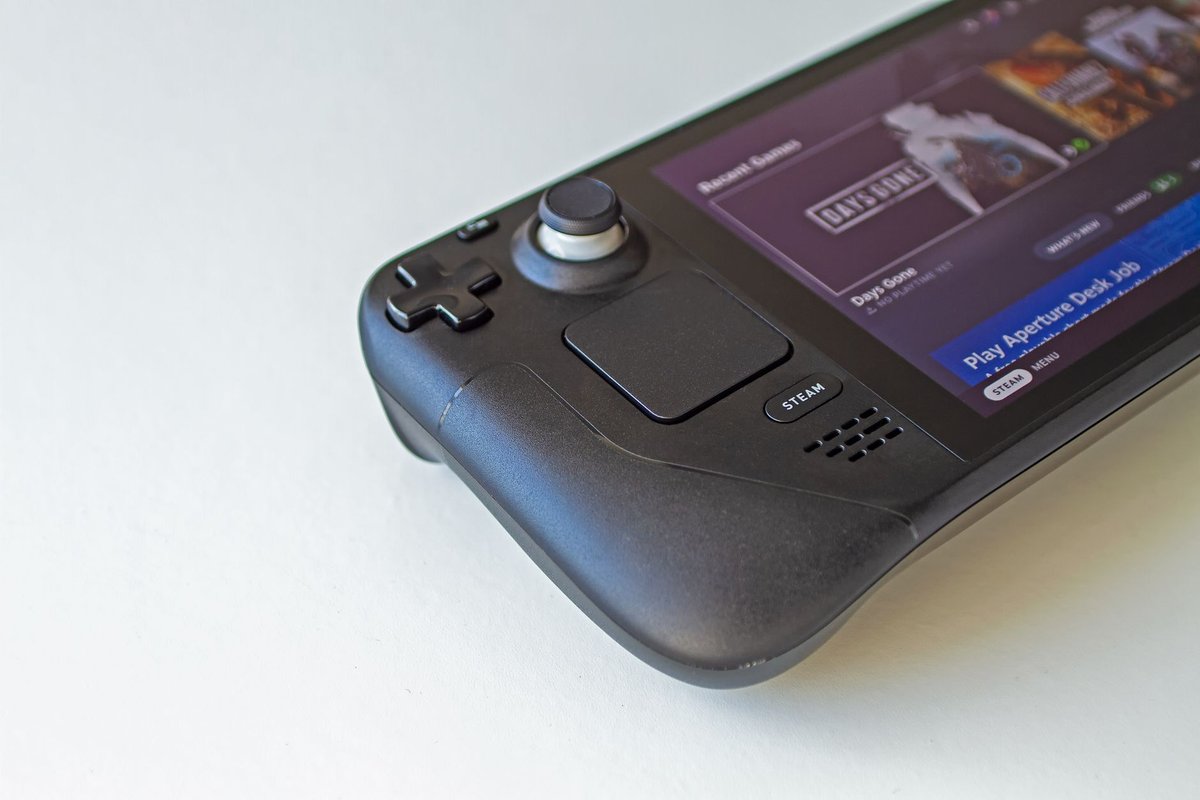
The Steam Deck put PC gaming in your hands, but getting the best experience requires more than just installing games. Out of the box, many titles either run too hot, stutter, or drain the battery faster than you'd like. This guide walks you through practical, tested settings and hardware tips to squeeze smooth, consistent performance from your Steam Deck while balancing battery life and thermals.
---
Why optimization matters
The Steam Deck is a compact PC with a custom APU and limited thermal headroom. Unlike desktop rigs, it needs careful tuning to avoid:
- Stuttering and frame drops that break immersion.
- Excessive heat that throttles performance.
- Rapid battery drain that shortens play sessions.
- Input lag from unstable frame pacing.
---
Quick checklist (do this first)
---
Global settings that help most
Resolution and scaling
- Default native: 1280×800 (7" screen).
- Recommendation: For demanding titles, set internal resolution to 720p and enable FSR (FidelityFX Super Resolution) or Proton's upscaling where available. This reduces GPU load while keeping visuals sharp.
Frame rate cap
- Recommendation: Cap at 40 FPS for most AAA games. This stabilizes frame pacing and reduces power draw. For fast-paced competitive titles, consider 60 FPS if thermals allow.
Refresh rate
- Default: 60 Hz.
- Tip: Lock to 40–50 Hz when capping FPS to avoid tearing and inconsistent frame delivery.
TDP and power limits
- Use SteamOS performance overlay to set TDP (power draw) limits. Lowering TDP by 5–10W can reduce throttling and smooth out performance.
Per-game tuning (examples)
Elden Ring
- Preset: Medium.
- Textures: Medium.
- Shadows: Low.
- FPS cap: 40.
- FSR: On (if available).
Cyberpunk 2077
- Preset: Medium/Low.
- Ray tracing: Off.
- DLSS/FSR: On (if supported).
- FPS cap: 30–40.
Indie titles (Hades, Dead Cells)
- Preset: Native resolution.
- FPS cap: Uncapped or 60 if thermals permit.
---
Advanced tweaks
Undervolting and frequency control
- Advanced users can undervolt the GPU/CPU to reduce heat while maintaining clocks. This requires careful testing and is not officially supported by Valve.
Custom Proton/compatibility flags
- Use Proton GE builds for better compatibility and performance in some Windows-only titles. Add launch options like `PROTON_NO_ESYNC=1` or `PROTON_USE_WINED3D=1` only if recommended by compatibility reports.
Swap and RAM management
- Close background apps and overlays. Use SteamOS settings to disable unnecessary services while gaming.
Accessories that matter (affiliate opportunities)
- Cooling stand / fan dock — reduces thermal throttling during long sessions.
- High-speed microSD (UHS-I / UHS-III) — faster streaming of assets reduces stutter.
- Portable charger / power bank — extends playtime on the go.
- USB-C hub with Ethernet — for stable online play and lower latency.
---
Battery vs performance: practical profiles
- Battery Saver (commute / long sessions): 30–40 FPS cap, lower brightness, TDP -10W.
- Balanced (daily play): 40 FPS cap, medium textures, FSR on.
- Performance (docked / short sessions): 60 FPS cap, higher TDP, higher resolution.
---
Troubleshooting common issues
Stuttering during asset streaming
- Move game to internal NVMe or use a faster microSD.
- Lower texture streaming settings.
Overheating and throttling
- Use a cooling stand; reduce TDP; lower ambient temperature.
Unexpected crashes
- Verify game files; update Proton/SteamOS; check community compatibility reports.
SEO & content expansion ideas
- How-to videos showing before/after FPS and battery tests.
- Per-game optimization pages with downloadable profiles.
- Affiliate comparison tables for microSD cards and cooling stands.
Conclusion
Optimizing your Steam Deck is a mix of sensible global settings, per-game tweaks, and the right accessories. Start with resolution and FPS caps, enable FSR where possible, and use a fast storage medium. With these changes you'll get smoother gameplay, longer sessions, and a more enjoyable portable PC experience.
Call to action: Try the 40 FPS cap + FSR combo on your most demanding game and tell us which setting gave the biggest improvement.