How to Fix FPS Drops on PC: The Complete Troubleshooting Guide (2026)
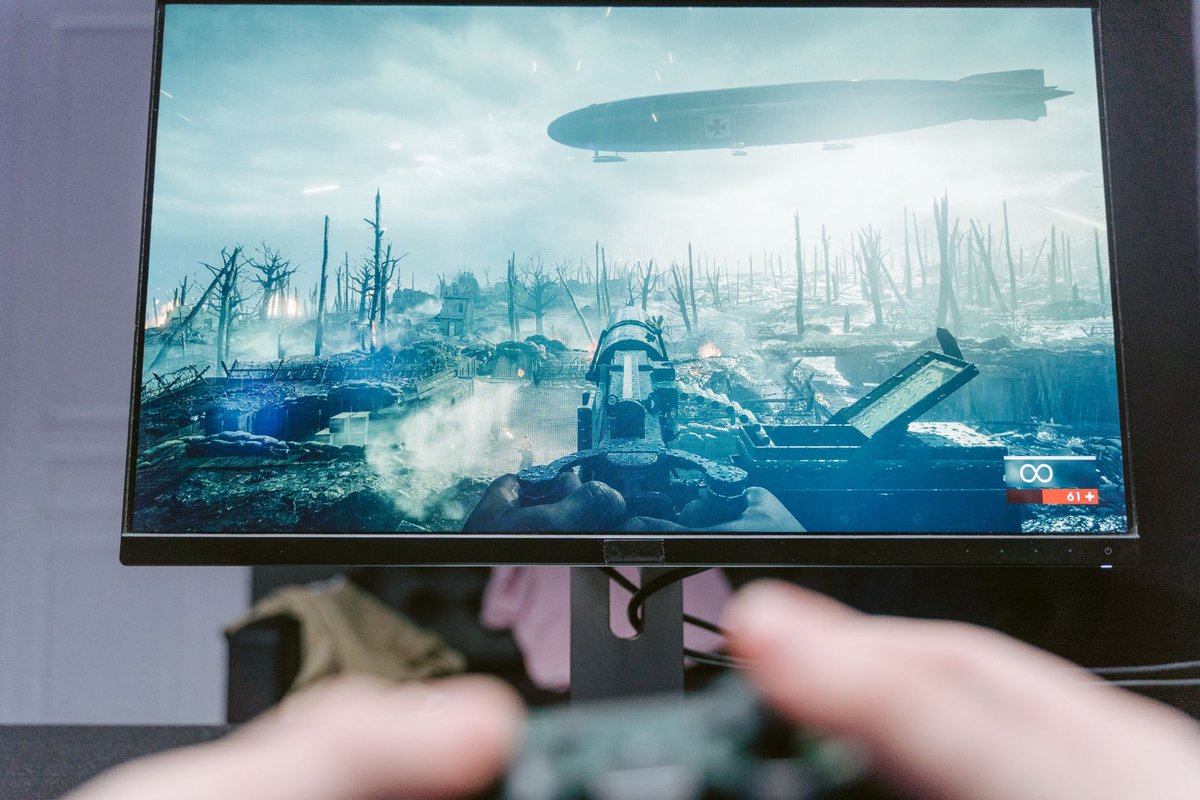
If you want to fix FPS drops on your PC fast, three steps recover the most frames for most people: update your GPU drivers, lower the heaviest in-game settings (shadows, ray tracing, volumetrics), and kill background CPU tasks. But sudden drops, stutters, and inconsistent frame rates have different causes — and applying random fixes wastes hours. This guide gives you a diagnose-first method: measure, identify the bottleneck, then apply the right fix in order.
First, understand what kind of FPS problem you have
Not all "FPS drops" are the same, and the fix depends on the type:
- Consistently low FPS: Your hardware can't keep up at current settings. Fix with settings, upscalers, or upgrades.
- Sudden drops during action: Usually GPU-bound scenes (explosions, many enemies) or VRAM overflow. Fix with settings.
- Periodic stutter every few seconds: Often background tasks, overlays, or asset streaming from slow storage.
- Drops that start after 20–30 minutes: Classic thermal throttling. Fix with cooling.
- One-time hitches in new areas: Shader compilation or asset loading — often normal on first run of modern titles.
Step 1: Measure your baseline
Before changing anything, record your starting point so you know what actually works:
- Enable an FPS overlay: Steam's built-in counter, NVIDIA App/GeForce overlay, AMD Adrenalin, or MSI Afterburner + RivaTuner.
- Note average FPS and 1% lows in a repeatable scene (same area, same match type). The 1% lows matter more than the average — they're what you feel as stutter.
- Watch CPU and GPU usage during drops: GPU at 99% = GPU-bound (lower graphics settings help); CPU maxed while GPU idles = CPU-bound (lower draw distance, close background apps, or the CPU is the ceiling).
Step 2: Free software fixes (highest impact first)
Update GPU drivers — properly
Install the latest NVIDIA Game Ready / AMD Adrenalin / Intel driver. For a major title on launch week, driver updates regularly deliver meaningful gains. If problems appeared after a driver update, roll back — or do a clean install with DDU (Display Driver Uninstaller) in Safe Mode to clear corrupted driver state.
Windows settings that matter
Kill the background thieves
- Close browsers (dozens of tabs = GBs of RAM and CPU spikes), cloud sync clients (OneDrive, Google Drive mid-sync), and RGB/peripheral suites you don't need.
- Disable overlays one by one: Discord, Steam, GeForce, Xbox Game Bar. Overlays are a top cause of periodic stutter.
- Check Task Manager during a drop — anything spiking CPU or disk while you play is a suspect (antivirus scans and Windows Update are frequent offenders; schedule them outside play hours).
Step 3: In-game settings — cut the expensive, keep the pretty
Settings are not equal. Cut in this order:
Keep textures high if your GPU has enough VRAM — texture quality costs little performance until VRAM overflows (which causes massive stutter; drop textures one notch if VRAM sits at its limit).
Use upscalers: DLSS (NVIDIA), FSR (any GPU), and XeSS (Intel) render at lower resolution and reconstruct the image — often 30–60% more FPS at Quality mode with minor visual cost. Frame generation adds smoothness but also latency; fine for single-player, test carefully for competitive shooters.
Cap your frame rate slightly below your monitor's refresh (or use Reflex/Anti-Lag): a stable 120 FPS feels better than one bouncing between 100 and 160.
Step 4: Thermals and hardware
If drops begin after sustained play, you're throttling:
- Monitor temps (HWiNFO, Afterburner). GPUs throttle around 83–90°C; CPUs vary but sustained 95°C+ means throttling.
- Fix airflow: Clean dust filters and heatsinks with compressed air, verify case fans work, don't push a laptop into a soft surface (a cooling pad genuinely helps thin laptops).
- Repaste aging CPUs/GPUs (3+ years) if temps are high despite clean cooling — or have a shop do it.
- Install games on an SSD/NVMe. Open-world titles stream assets constantly; a hard drive causes hitching no settings change can fix.
- 16GB RAM minimum for modern titles; check that dual-channel is active (two sticks in the right slots) — single-channel RAM quietly costs real performance.
- Keep 15–20% free space on the game drive.
Quick decision table
| Symptom | Most likely cause | First fix | | --- | --- | --- | | Low FPS always | GPU-bound settings | Lower shadows/RT, enable DLSS/FSR | | Stutter every few seconds | Background apps/overlays | Disable overlays, check Task Manager | | Drops after 20–30 min | Thermal throttling | Clean cooling, check temps | | Hitching in new areas | Slow storage / shader comp | Move game to NVMe; let shaders finish | | GPU idle, CPU maxed | CPU bottleneck | Lower draw distance/crowds, close apps |
When it's time to upgrade (affiliate section)
If software fixes plateau, upgrade in this order of impact:
| Upgrade | One-line pro | One-line con | | --- | --- | --- | | NVMe SSD [AFFILIATE\_LINK\_NVME\_SSD] | Eliminates streaming stutter and load times | Doesn't raise average FPS much | | 32GB RAM kit [AFFILIATE\_LINK\_RAM\_KIT] | Fixes swapping stutter and multitask drops | No gain if 16GB wasn't the bottleneck | | GPU upgrade [AFFILIATE\_LINK\_GPU] | Biggest raw FPS increase available | Highest cost; check PSU and case fit |
Suggested anchor text: fix FPS drops with the right upgrade
> Callout — before you buy anything: run the Step 1 measurement. If your GPU isn't at 99% during drops, a new GPU won't fix them. Diagnosis first, wallet second.
FAQ
Q: Why did my FPS suddenly drop after a Windows or game update? A: Updates can reset settings, re-enable overlays, or introduce driver conflicts. Recheck your power plan, graphics preference, and driver version first; roll back the GPU driver if the timing matches.
Q: Why do FPS drops happen mid-game, not at the start? A: The most common causes are thermal throttling (heat builds over time), memory leaks in long sessions, and background tasks kicking in. Monitor temps and Task Manager during a drop to identify which.
Q: Does capping FPS actually help? A: Yes — a cap just below your refresh rate stabilizes frame times, lowers temperatures, and reduces the peaks-and-valleys feel. Stability beats maximum numbers.
Q: Is DLSS/FSR safe for competitive shooters? A: Upscaling (Quality mode) is broadly used and fine; frame generation adds input latency, so most competitive players skip it. Test in a practice mode and judge by feel.
Q: How do I know if my CPU or GPU is the bottleneck? A: Watch usage during gameplay: GPU pinned at ~99% means GPU-bound (settings help); GPU well under 90% with high CPU usage means CPU-bound (draw distance, crowds, and background apps matter more).
Q: Can antivirus cause FPS drops? A: Yes — scheduled scans and real-time scanning of game files cause periodic stutter. Add your game folders to exclusions and schedule scans outside play hours.
Final verdict and CTA
Fixing FPS drops is a process, not a lucky toggle: measure your baseline, apply the free software fixes, cut the expensive settings, then verify thermals before spending money. Most systems recover smooth gameplay without any new hardware — and if you do upgrade, the measurement step tells you exactly which part to buy.
Try it now: run the Step 1 baseline, apply Step 2, and re-measure — then share your before/after 1% lows in the comments.
---
---