Best microSD for Steam Deck: Speed, Capacity, and Real-World Picks
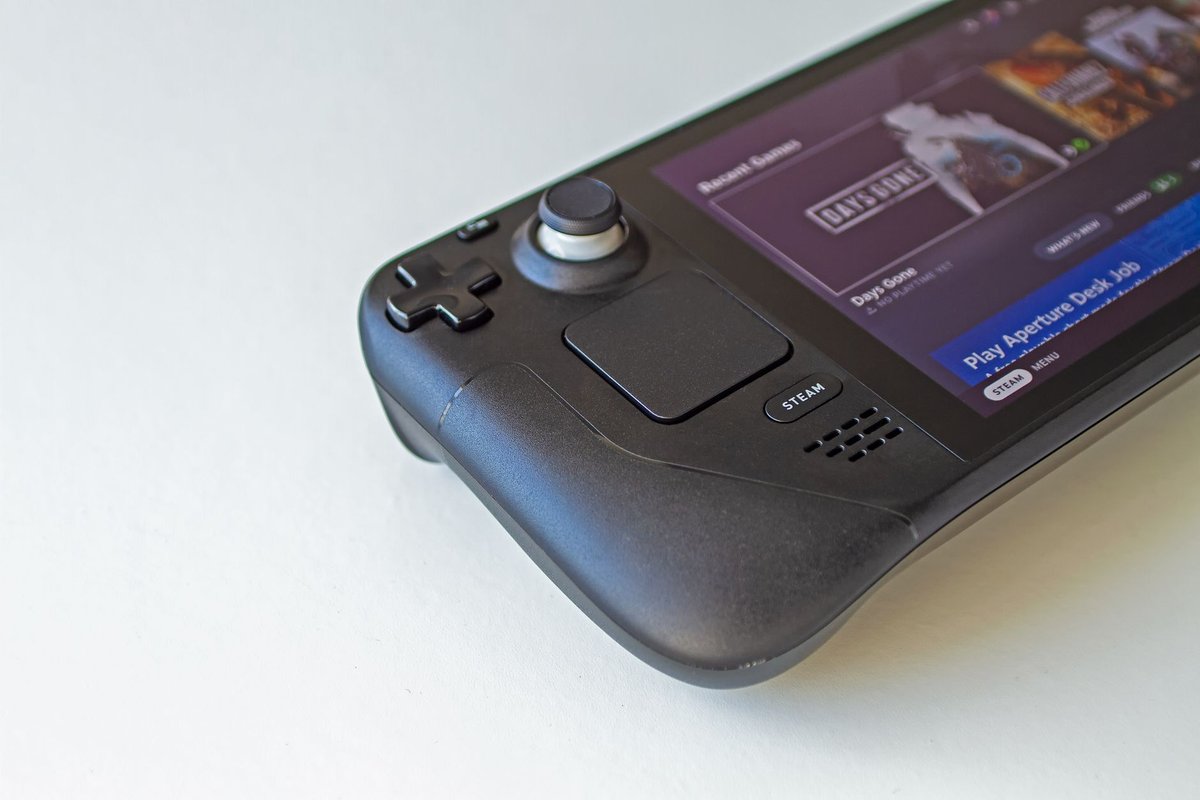
Choosing the best microSD for Steam Deck means balancing capacity, sustained performance, and price. The Deck streams assets from the card during gameplay, so a fast sustained write/read profile and a reliable controller matter more than raw peak numbers. This guide explains the specs that affect load times and stutters, recommends cards for different budgets and capacities, and walks you through formatting, testing, and maintaining your microSD for the longest life.
Why microSD choice matters for the Steam Deck
The Steam Deck uses microSD cards to expand storage affordably. Unlike simple file storage, games often stream textures and assets from the card during play. A slow or inconsistent card can cause longer load times, texture pop-in, or stutters in open-world titles. Choosing the right card reduces those issues and gives you a smoother portable experience.
What to look for in a microSD for Steam Deck
- Capacity: 128GB, 256GB, 512GB, and 1TB are common; pick based on your library size and whether you install AAA titles. Larger cards cost more but reduce the need to juggle installs.
- Speed class markings: Look for UHS-I U3 or V30 at minimum; these guarantee a baseline of sustained write speed suitable for gaming.
- Sustained performance: Peak read speeds (e.g., 100–200 MB/s) are useful, but sustained and consistent read performance under load matters more for game streaming. Note: the Steam Deck's slot is UHS-I, so faster UHS-II cards won't run any faster in the Deck.
- A1/A2 app performance class: A1/A2 ratings indicate random I/O performance; relevant since games run directly from the card, though real-world impact varies (A2 needs host support to hit rated numbers).
- Brand reliability and warranty: Choose established brands with good warranties and proven endurance ratings.
- Price per GB: Balance cost and capacity; sometimes a slightly slower card with double the capacity is a better value than a tiny ultra-fast card.
How the Steam Deck uses microSD (practical implications)
- Game installs: The Deck treats microSD like internal storage for installs; many users install large AAA games on the card.
- Streaming assets: During gameplay, the Deck streams textures and assets from the card; inconsistent read speeds can cause stutters.
- Saves and configs: Save files are small, but frequent writes can affect card longevity; choose cards with good endurance if you plan heavy use.
- Formatting: SteamOS formats cards as ext4 through the Deck's own Settings → Storage flow, format on the Deck for best results.
Top microSD picks for Steam Deck (real-world recommendations)
Best overall, SanDisk Extreme (UHS-I U3 / V30 / A2)
SanDisk's Extreme line balances high read speeds and reliable sustained performance at a reasonable price. It's widely available in 128GB–1TB sizes and performs well for game installs and streaming assets. SanDisk's reputation for endurance and broad compatibility makes this a safe all-around choice.
Who should buy: Most Steam Deck owners who want a reliable, fast card without paying premium prices.
Best high-capacity value, Samsung EVO Select / EVO Plus (UHS-I U3 / V30)
Samsung's EVO Select (or EVO Plus in some regions) often offers the best price per GB for 256GB–1TB cards. Read speeds are competitive, and Samsung's controller firmware tends to deliver consistent sustained performance. This is a great pick if you want lots of storage for many AAA titles.
Who should buy: Users who prioritize capacity and value over absolute top-tier speeds.
Best premium performance, Lexar Professional 1066x / SanDisk Extreme Pro
If you want the fastest sustained reads and writes available in UHS-I cards, premium lines like Lexar Professional 1066x or SanDisk Extreme Pro deliver higher real-world throughput. These cards are ideal if you frequently install and uninstall large games.
Who should buy: Power users who want the best sustained performance and are willing to pay a premium.
Best endurance option, Kingston Canvas React Plus / high-endurance lines
Endurance-focused cards are built for many write cycles and can be a good choice if you use the Deck heavily for installs, saves, and frequent rewrites. They may cost more per GB but last longer under heavy use.
Who should buy: Users who frequently rewrite or reformat cards and want long-term reliability.
---
Capacity guidance: how much microSD do you need?
- 128GB: Good for a handful of indie titles and a couple of medium-sized AAA games. Best for light libraries.
- 256GB: Comfortable for a mix of indie and AAA titles; a practical sweet spot for many users.
- 512GB: Ideal for larger libraries and several AAA installs. Recommended if you don't want to manage installs often.
- 1TB: Best for users who want to carry a large library of AAA games; higher cost but maximum convenience.
How to format and install a microSD on Steam Deck
---
Real-world testing tips (how to verify your card performs)
- Beware of fakes: Counterfeit cards with inflated capacities are common on marketplaces. Buy from reputable sellers and verify new cards with H2testw (Windows) or F3 (Linux/macOS) before trusting them with your library.
- Benchmark on a PC with CrystalDiskMark to check sequential and random read/write speeds; look for consistent sustained numbers, not just peak reads.
- Run a large game on the Deck and monitor load times and texture streaming; if you see stutters, try moving the game to internal storage to compare.
- Backup regularly: microSD cards can fail; Steam Cloud covers most saves, but back up non-Steam game data and emulator saves separately.
Common mistakes to avoid
- Buying solely on peak MB/s claims. Peak read speeds are marketing-friendly but don't guarantee sustained performance under game streaming loads.
- Paying extra for UHS-II. The Deck's slot is UHS-I, a UHS-II card works but runs at UHS-I speeds, so the premium is wasted.
- Choosing the cheapest unknown brand. Unknown brands can have poor controllers and short lifespans. Stick to reputable manufacturers.
- Formatting on a PC first. Format on the Deck itself so SteamOS sets up the filesystem correctly.
- Ignoring warranty and endurance specs. A slightly more expensive card with a longer warranty is often the better long-term buy.
Comparison table (3 products)
| Product | One-line pro | One-line con | | --- | --- | --- | | SanDisk Extreme (U3/V30/A2) | Reliable sustained performance and wide availability | Not the absolute fastest in benchmarks | | Samsung EVO Select (U3/V30) | Best price per GB for large capacities | Model names vary by region; check the exact SKU | | Lexar Professional 1066x | Premium sustained throughput for heavy installs | Higher cost per GB |
---
FAQ
Q: What is the best microSD for Steam Deck? A: A UHS-I U3 / V30 card with strong sustained performance from a reputable brand, SanDisk Extreme or Samsung EVO Select, is the best balance for most users.
Q: Can I run games from a microSD on Steam Deck? A: Yes, the Steam Deck fully supports installing and running games from microSD; format the card on the Deck itself for best compatibility.
Q: Does microSD speed affect load times on the Steam Deck? A: Yes, slower sustained read speeds increase load times and can cause texture streaming stutters in open-world games.
Q: Is 128GB enough for the Steam Deck? A: 128GB suits indie-heavy libraries but fills quickly with AAA titles (many exceed 60–100GB each); 256GB or 512GB is a safer choice.
Q: Do faster UHS-II cards help on Steam Deck? A: No, the Deck's slot is UHS-I, so UHS-II cards run at UHS-I speeds. Don't pay the UHS-II premium for Deck use.
Q: How do I check my card isn't fake? A: Test new cards with H2testw or F3 to verify real capacity and speed before installing your library, counterfeits are common on marketplaces.
---
Maintenance and longevity tips
- Avoid filling the card to 100% capacity; leave 10–20% free for optimal performance.
- Power off (or use the OS eject option) before removing the card to prevent corruption.
- Replace cards that show read/write errors or slowdowns; don't rely on a single card for irreplaceable data.
- Keep SteamOS updated; some updates improve storage handling and performance.
Final verdict and CTA
For most Steam Deck owners, a SanDisk Extreme or Samsung EVO Select in 256GB–512GB offers the best balance of speed, capacity, and price. If you need the fastest sustained throughput, step up to Lexar Professional or SanDisk Extreme Pro. Format the card on the Deck, verify it's genuine, test a large game after install, and back up your non-cloud saves.
Ready to expand your Steam Deck library? Compare current prices and pick the capacity that fits your library.
---
---